Event Collections
Overview
Event Collections allow you to organize and group related events together into shareable, branded pages. You can bundle individual events and recurring event templates, making it easier to share multiple events with participants and manage themed event series.
Creating and Setting Up Your Collection
Navigate to the Event Collections section in your Organiser Hub under the Events menu and click “Create Collection”.
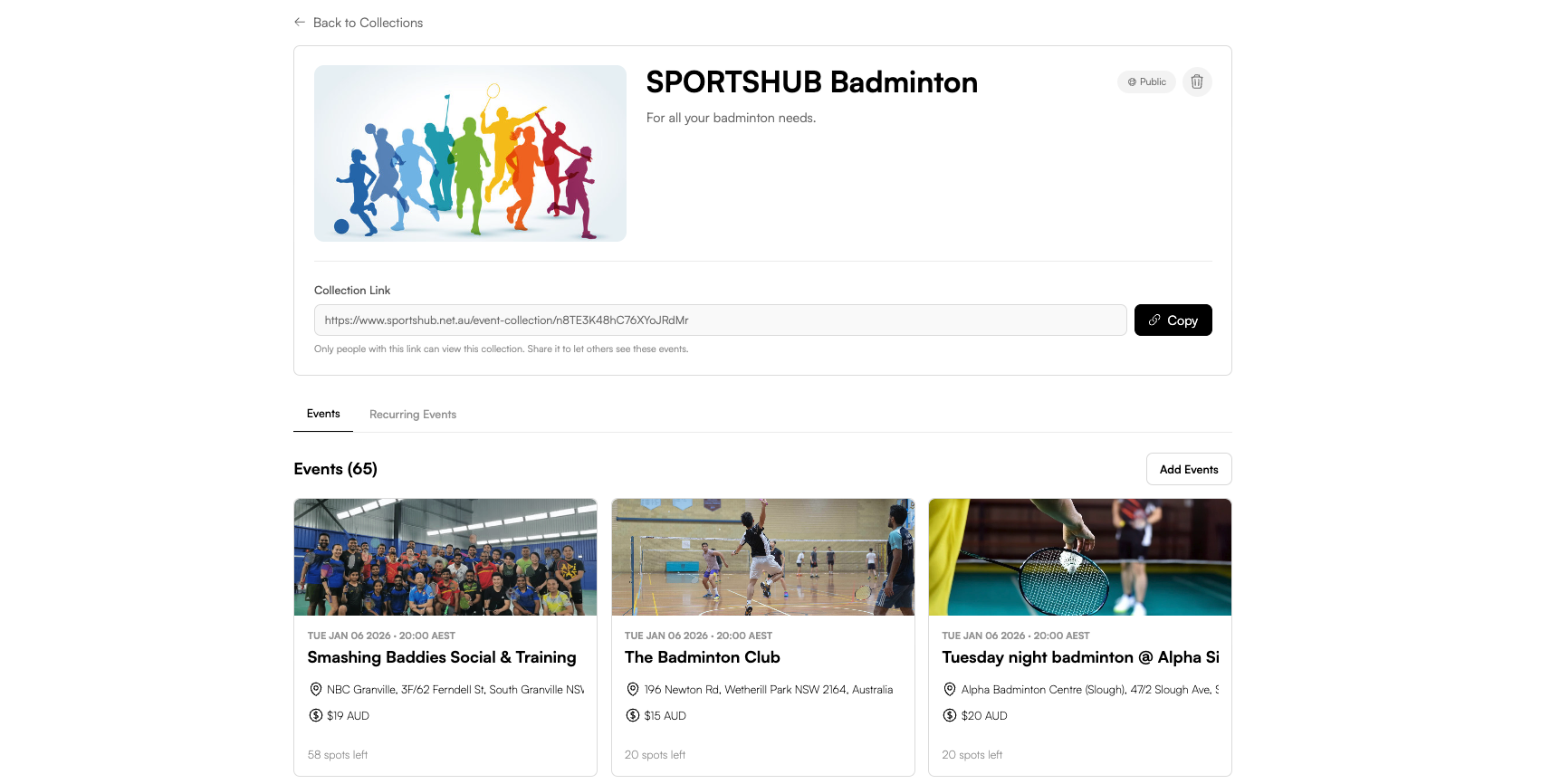
Collection Details
- Name and Description: Click on the collection name or description to edit them inline. Choose a clear, descriptive name and provide context about what participants can expect.
- Image: Click the collection image area to upload a banner image or choose from previously uploaded images. The image appears on collection cards and at the top of the collection page.
- Privacy Settings: Collections can be set to Public or Private:
| Privacy Setting | Description | Best For |
|---|---|---|
| Public | Visible on your organiser profile page and discoverable by anyone | Showcasing your main event offerings, public programs |
| Private | Only accessible via direct link—hidden from your profile | Exclusive events, test collections, limited access |
You can toggle between public and private at any time. All changes are saved automatically when you finish editing.
Adding Events to Your Collection
Adding Individual Events
Click “Add Events” in the Events tab, select the events you want to include (selected events show a checkmark), then click “Save Selection”. You can add multiple events at once, and events can belong to multiple collections.
Adding Recurring Event Templates
Switch to the “Recurring Events” tab, click “Add Recurring Events”, select your recurring event templates, and click “Save Selection”.
Important
When you add a recurring event template to a collection, all future events created from that template will automatically be added to the collection. This means you can “set and forget”—your collection stays up-to-date with new recurring events without manual intervention.
Managing Your Collection
To remove an event or recurring template, hover over the event card and click the trash icon that appears. This only removes it from the collection—the event itself remains active.
You can edit collection details at any time by clicking on the name, description, image, or privacy badge. All changes are saved automatically.
Sharing Your Collection
Each collection has a unique, shareable link displayed at the bottom of the collection editor. Click “Copy” to copy the link to your clipboard and share it via social media, email, your website, or printed materials.
Tip
Private collections can only be accessed via the direct link. Public collections are also discoverable on your organiser profile page, making them perfect for showcasing your main event offerings.
Collection Page
When someone visits your collection link, they’ll see a collection banner, event calendar, and tabs for upcoming and past events with event cards showing details, location, pricing, and availability. This makes it easy for participants to browse and register for multiple related events.
Best Practices
Organize collections by theme (e.g., “Beginner Classes”, “Tournament Series”), location, season, or skill level. Use clear, descriptive names and include key information in descriptions.
You can create as many collections as you need, and events can belong to multiple collections. View all your collections on the main Event Collections page with collection cards showing the image, name, event count, and privacy status.
Event Collections provide a powerful way to organize, share, and manage groups of related events, making it easier for participants to discover and register for your events.